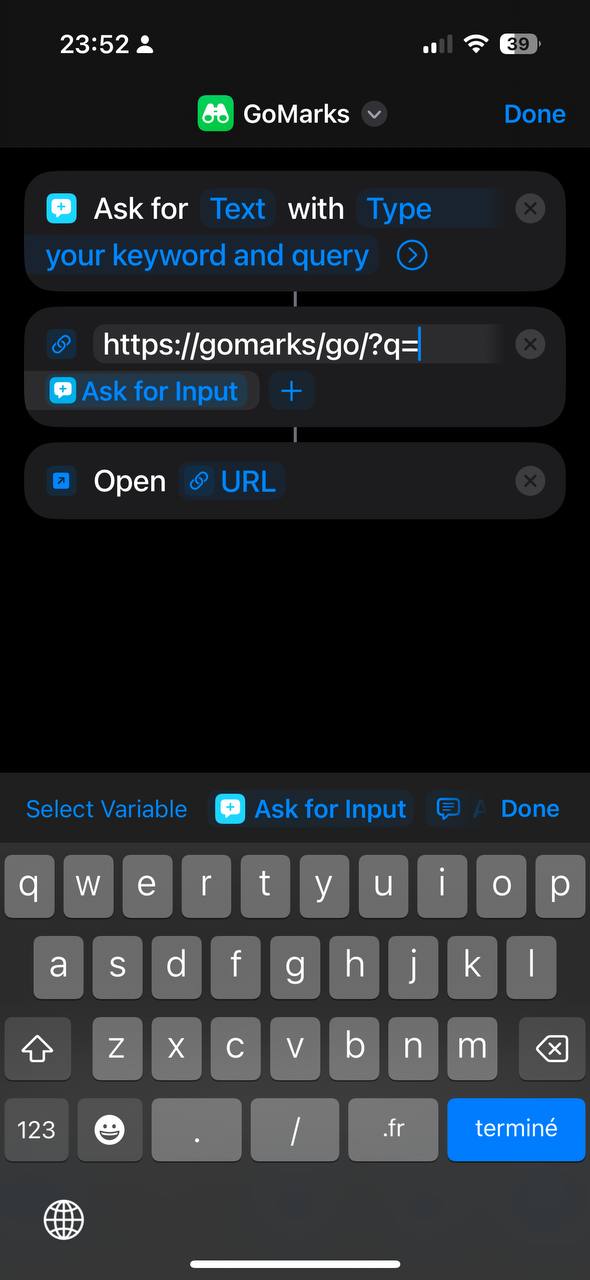
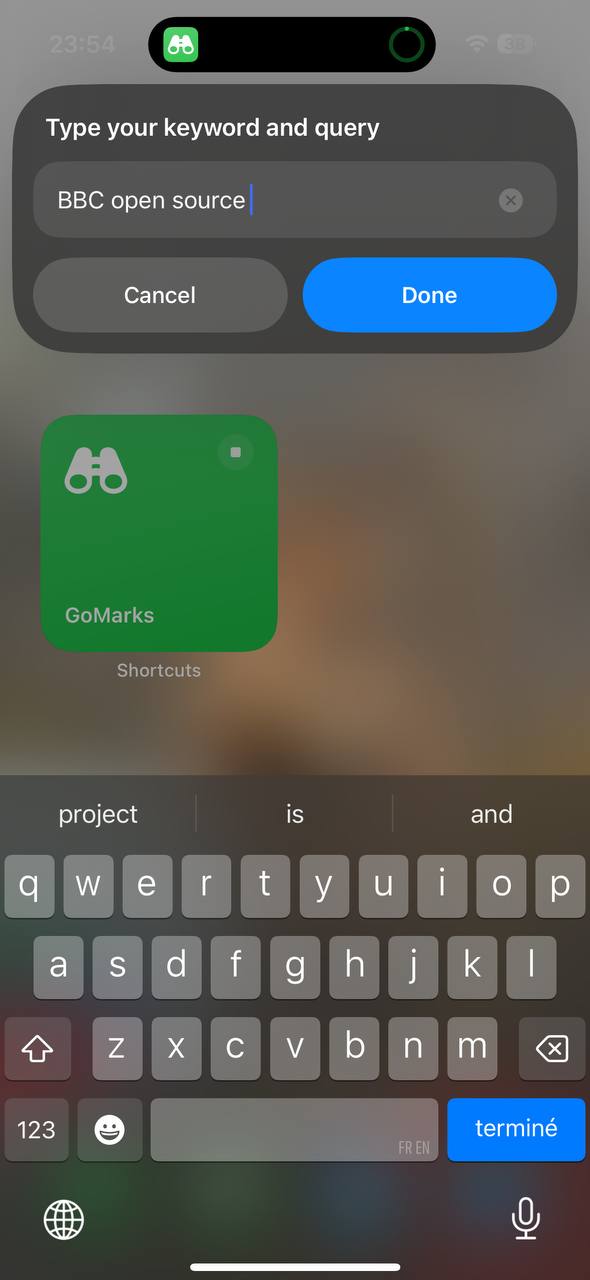
https://gomarks.gwill.cloud/go/?q=keyword+option directly
3. RECOMMENDED: make GoMarks your browser's default search engine so you can type your keywords (and potential options) directly in your browser URL bar.
bbc can take you to the destination URL https://www.bbc.com.
Simple shortcuts can't take options (for example bbc europe) because they act like traditional bookmarks.
bbc europe or bbc asia) and will redirect based on a mandatory placeholder %s in the destination URL.
For the above BBC example, this would be your URL https://www.bbc.com/news/world/%s.
A request bbc europe would take you to https://www.bbc.com/news/world/europe.
Smart shortcuts will throw an error if you do not pass an option because the placeholder expects one.
https://www.theverge.com/search?q=Macbook+Neo in your browser bar.
This would translate to a destination URL https://www.theverge.com/search?q=%s to which I assign the keyword verge.
Now, searching for verge Macbook Neo in GoMarks will take you to the list of articles about Macbook Neos on The Verge website.
Some websites add a lot of tracking garbage to the URL when searching, like &utm_medium=cpc&utm_campaign=spring_sale.
Usually you can safely remove those and only keep the query argument in your destination URL.
You can find more shortcut examples below.
%s can take multiple words (like the "Macbook Neo" example above).
When adding or editing a shortcut, you'll see a "1️⃣ single option keyword" option.
This option only activates for URLs with a placeholder.
If you enable the option, it means your shortcut is expected to take a single option (e.g. verge Macbook but not verge Macbook Neo).
If you pass multiple options/words, GoMarks will bypass your keyword and make a search engine query instead.
Let me illustrate the concept with queries around the Docker topic.
You want a shortcut to search for images on Docker Hub by using docker mariadb (destination URL https://hub.docker.com/search?q=%s).
Sometimes, you are also likely to search for docker compose syntax.
If you DO NOT enable single option keyword, you would end up searching Docker Hub for "compose syntax" which is probably not what you wanted.
With the option enabled, docker compose syntax will make a search engine request and docker mariadb will make a Docker Hub search.
When single option is enabled, an icon 1️⃣ appears next to the keyword in the shortcuts list.
| Description | Link |
|---|---|
| Find Docker images | https://hub.docker.com/search?q=%s |
| Search in author's Github repositories | https://github.com/sebw?tab=repositories&q=%s&type=&language=&sort= |
| Search a Fedora Linux package | |
| Compare Amazon prices | https://keepa.com/#!search/4-%s |
| Find a Python Library | https://pypi.org/search/?q=%s |
| Wikipedia Search | https://en.wikipedia.org/?search=%s |
| Eggtimer. Query "timer 5m" to set a 5 minute timer. | https://e.ggtimer.com/%s |
| Unsure about your pronounciation? Query "say miscellaneous" | https://www.google.com/search?q=pronounce+%s |
| Check movie rating | https://www.imdb.com/find?q=%s |
| Check HTTP status code for cat lovers | https://http.cat/%s |
| Usage | Action |
|---|---|
!add myshortcut https://www.example.com |
adds a simple shortcut |
!add myshortcut https://www.example.com/%s |
adds a placeholder shortcut |
!add myshortcut https://www.example.com/%s 1 |
adds a single option keyword shortcut |
!mod myshortcut |
takes you to the edit page for the shortcut |
!del myshortcut |
takes you to delete confirmation page |
chrome://settings/searchEngines
Search Engine > Manage search engines and site search
Site Search > Add
Add Site Search and use this URL https://gomarks.gwill.cloud/go/?q=%s
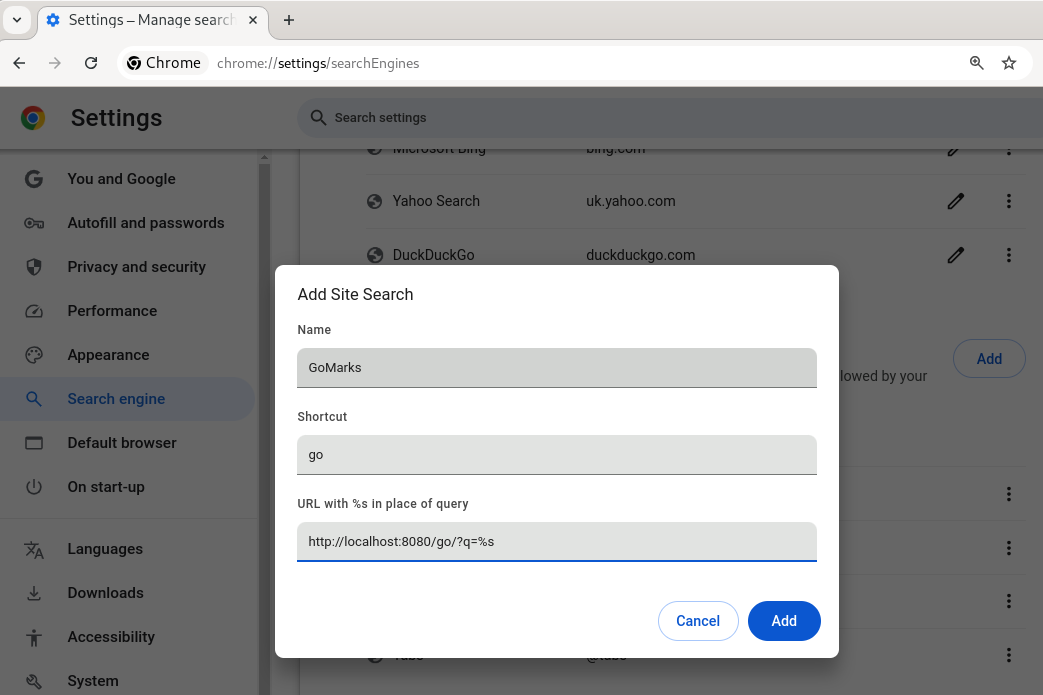 Click on the hamburger menu for your new search engine > Make default
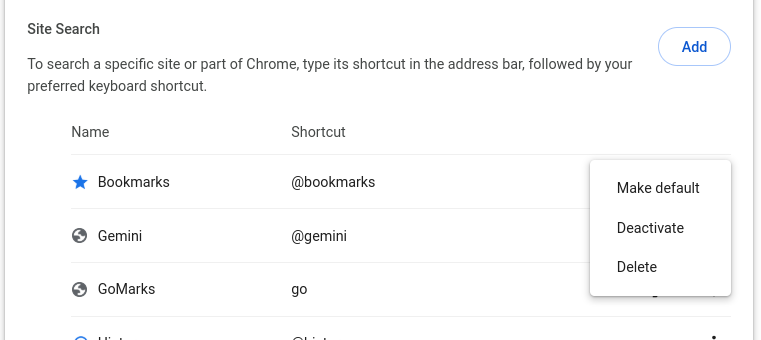 Start searching
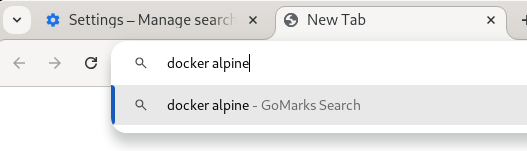
https://gomarks.gwill.cloud/go/?q=%s
Optionally you can also configure the shortcut suggestions with this URL https://gomarks.gwill.cloud/suggest/?q=%s.
The suggestion endpoint must be publicly available and not behind any authentication. This is a Firefox limitation.
You can also use this add-on.
You can trigger a backup via the button on the main page or via:
curl -X POST https://gomarks.gwill.cloud/backup
The database will be saved on the filesystem in the format items.db.timestamp.
You can restore the database by manually replacing items.db with the backup copy.